
Microsoft announced Wednesday that it has finalized the code for the Windows Phone 7 mobile operating system, and that it's now up to device manufacturers and carriers to bring the phones to market.
"Our OEM partners and mobile operator partners have had test builds for quite a while; we'll turn it over to them and say we're done. Mobile operators will put their tiles on the home screen, and add their settings within the framework of our UI," said Microsoft senior product manager Greg Sullivan.
Unlike with Google's Android OS, wireless carriers and manufacturers can't heavily customize Windows Phone 7. Their contributions will be limited to their own "hubs," which appear as snap-in squares on the Windows Phone 7 home screen.
We spent some time with an earlier version of Windows Phone 7 running on a Samsung phone in July. At the time, our editor-in-chief Lance Ulanoff said the OS seemed to be flexible and powerful.
While Microsoft has primarily been working on bug fixes and performance optimizations, Sullivan said the company added a few new features between the technical preview and the final code. Users will be able to filter out Facebook contacts that don't also appear in other address books. They'll be able to "like" Facebook items and post on their friends' walls, and there will be a more obvious search button in the overall address book.
Also recently, Microsoft showed top-notch games for the Windows Phone 7 platform and said the final version of the developer tools will come out September 16.
Sullivan declined to say exactly when Windows Phone 7 devices would be coming out, except to reiterate that they would be in stores for "the holiday season." But Microsoft's chief operating officer, Kevin Turner said that Windows Phone 7 will appear in "October likely across Europe, November likely across the U.S."
Here in the U.S., AT&T will be the "premier partner" for Windows Phone 7, though Sullivan cautioned that "premier" doesn't mean "exclusive." A wide range of possible Windows Phone 7 devices have been appearing on rumor Web sites.
By PC Magazine
Monday, September 6, 2010

Tuesday, June 22, 2010
How to Disable Themes in Windows 7
Windows 7 Premium and above include the Windows Aero theme as the default desktop theme. Visual styles can be pleasing to the eye and provide a sleek modern look to the desktop environment. However, Windows themes may not always be practical. Fortunately, Windows 7 themes can be switched or for added control and performance, desktop themes can be completely disabled.
This guide will show how to disable desktop themes using the Windows Services.msc console in three steps:
* Locate Services.msc with the Search programs and files dialog box in the start menu
* (Alternate method) Open Services.msc from the Control Panel
* Stop the Themes service
* Disable the Themes service for the Windows desktop
Key Benefits to Disabling Windows Themes
* Increase computer performance
* Free up memory (RAM)
* Prevent other users from changing the default Windows desktop
Locating Services.msc with Search Programs and Files Dialog Box in the Start Menu
1. Click the blue Windows logo located on the left side of the taskbar
2. In the Search programs and files dialog box located at the bottom, type "services.msc"
3. After a few moments, Services should be visible under the programs menu
4. Single-click the Services link in the start menu
5. The Services.msc console opens
(Alternate Method) Locating the Services.msc Console Through the Control Panel
To locate Windows services through the Control Panel:
1. Click the blue Windows logo located on the left side of the taskbar
2. Select the Control Panel button located on the right side of the menu
3. Click System and Security located in the top left corner
4. Click Administrative Tools located near the bottom of the Control Panel window
5. The Administrative Tools window appears listing available tools
6. Double-click Services to open the Services.msc console
Stop the Themes Service
1. Each service is listed in alphabetical order, scroll down to locate the service labeled "Themes"
2. Select to highlight the Themes service
3. Two options appear on the left side of the box: Stop the service and Restart the service
4. Click Stop the service
5. The desktop should automatically revert to the Windows Classic desktop
Disable the Themes Service for the Windows Desktop
Even though the Themes service is stopped, the user must set the service to be disabled. If this is not done, the service will start automatically when the computer restarts.
1. With the Themes service highlighted, right-click on the selection
2. In the the menu, select the Properties menu option
3. With the Themes Properties window open locate the Startup type drop down box
4. click the drop down box and select disabled
5. When finished, click the Apply button
The Windows 7 desktop themes will now be disabled. In the future, if the user tries to select themes, only the Windows Classic desktop will be available.
This guide will show how to disable desktop themes using the Windows Services.msc console in three steps:
* Locate Services.msc with the Search programs and files dialog box in the start menu
* (Alternate method) Open Services.msc from the Control Panel
* Stop the Themes service
* Disable the Themes service for the Windows desktop
Key Benefits to Disabling Windows Themes
* Increase computer performance
* Free up memory (RAM)
* Prevent other users from changing the default Windows desktop
Locating Services.msc with Search Programs and Files Dialog Box in the Start Menu
1. Click the blue Windows logo located on the left side of the taskbar
2. In the Search programs and files dialog box located at the bottom, type "services.msc"
3. After a few moments, Services should be visible under the programs menu
4. Single-click the Services link in the start menu
5. The Services.msc console opens
(Alternate Method) Locating the Services.msc Console Through the Control Panel
To locate Windows services through the Control Panel:
1. Click the blue Windows logo located on the left side of the taskbar
2. Select the Control Panel button located on the right side of the menu
3. Click System and Security located in the top left corner
4. Click Administrative Tools located near the bottom of the Control Panel window
5. The Administrative Tools window appears listing available tools
6. Double-click Services to open the Services.msc console
Stop the Themes Service
1. Each service is listed in alphabetical order, scroll down to locate the service labeled "Themes"
2. Select to highlight the Themes service
3. Two options appear on the left side of the box: Stop the service and Restart the service
4. Click Stop the service
5. The desktop should automatically revert to the Windows Classic desktop
Disable the Themes Service for the Windows Desktop
Even though the Themes service is stopped, the user must set the service to be disabled. If this is not done, the service will start automatically when the computer restarts.
1. With the Themes service highlighted, right-click on the selection
2. In the the menu, select the Properties menu option
3. With the Themes Properties window open locate the Startup type drop down box
4. click the drop down box and select disabled
5. When finished, click the Apply button
The Windows 7 desktop themes will now be disabled. In the future, if the user tries to select themes, only the Windows Classic desktop will be available.
Thursday, June 3, 2010
Windows 7 Tricks: 3 Amazing Keyboard Shortcuts Navigation
1. Minimize Multiple Inactive Background Window in a Single Click
Suppose you are working on an important document but the other inactive but open windows are sneaking in from behind. It may be very distracting however silly may you find. So, what do you? Do you minimize all with Windows+D and then resurface the current one? No. There is a shorter way in Windows 7.
Simply hit Win+Home to minimize all the non-active background windows, keeping the window you’re using in its current position. When you’re ready, press Win+Home again to restore the background windows to their original locations.
2. Use Hot Keys for Applications
Did you know that you can rearrange the icons in the taskbar of Windows 7. What’s particularly nice is that once they’re reordered, you can start a new instance of any of the first five icons by pressing Win+1, Win+2, Win+3 etc I press Win + 5 and there comes my GOM player! Very cool.
3. Launch Administrative Privilege for any Application through Shortcuts
Suppose you are working on some program and suddenly you see that you don't have administrative privileges to do that particular operation. What do you do then? Switch account? No.
Just press CTRL+Shift and then click the icon you want to have admin privilege of. It will come up with full administrative privilege assuming you have the permission or the security rights.
Suppose you are working on an important document but the other inactive but open windows are sneaking in from behind. It may be very distracting however silly may you find. So, what do you? Do you minimize all with Windows+D and then resurface the current one? No. There is a shorter way in Windows 7.
Simply hit Win+Home to minimize all the non-active background windows, keeping the window you’re using in its current position. When you’re ready, press Win+Home again to restore the background windows to their original locations.
2. Use Hot Keys for Applications
Did you know that you can rearrange the icons in the taskbar of Windows 7. What’s particularly nice is that once they’re reordered, you can start a new instance of any of the first five icons by pressing Win+1, Win+2, Win+3 etc I press Win + 5 and there comes my GOM player! Very cool.
3. Launch Administrative Privilege for any Application through Shortcuts
Suppose you are working on some program and suddenly you see that you don't have administrative privileges to do that particular operation. What do you do then? Switch account? No.
Just press CTRL+Shift and then click the icon you want to have admin privilege of. It will come up with full administrative privilege assuming you have the permission or the security rights.
Sunday, April 11, 2010
History of Computer Operating Systems - MSDOS
Microsoft operating system, which probably marks the rise of Microsoft. DOS is another operating system which has the basic feature of CUI (Character User Interface) mode. You require learning the commands. It was one of the most powerful computer operating systems of its time and Microsoft continuously improved this product, which led them to capture a significant market.
History of Computer Operating Systems - MSDOS
The original version of DOS, QDOS was purchased by Microsoft from Seattle Computer Products in 1981. Microsoft released much different type of versions of DOS and worked on the bugs present in those versions. By 1993, Microsoft had included the MOVE command, MSBACKUP and a simple anti-virus program and disk defragmenter. Microsoft kept on improving this product and by 1984, they had added support for high density floppy disks, 32 MB hard disks and networking. In 1994, Microsoft licensed a disk compression package called DriveSpace and included it in its DOS version. This version is also a part of the Windows 95 operating system.
Microsoft Windows
Windows operating system is the most widely used operating system in the world and it is a product from Microsoft. The latest new version is Windows 7. Microsoft Windows was an operating system that support for a variety of features before other operating systems had included them. Windows operating system captured wide range of software’s support in the large market .
History of Computer Operating Systems - Microsoft Windows
Microsoft announced the launch of Microsoft Windows, in November 10, 1983; it was an extension of the MS DOS operating system. This marked the beginning of the GUI era. This was very successful and they worked newer versions of Windows. After that Windows 95 was released in 1995. In 2000 saw the release of Windows ME after Windows 98 in 1998 and finally there was Windows XP, which was released in the year 2001. All these operating systems included a variety of features.. Finally Microsoft brought Windows 7 to the markets in March 2010. And this got most of the problems with Windows Vista, fixed.
History of Computer Operating Systems - MSDOS
The original version of DOS, QDOS was purchased by Microsoft from Seattle Computer Products in 1981. Microsoft released much different type of versions of DOS and worked on the bugs present in those versions. By 1993, Microsoft had included the MOVE command, MSBACKUP and a simple anti-virus program and disk defragmenter. Microsoft kept on improving this product and by 1984, they had added support for high density floppy disks, 32 MB hard disks and networking. In 1994, Microsoft licensed a disk compression package called DriveSpace and included it in its DOS version. This version is also a part of the Windows 95 operating system.
Microsoft Windows
Windows operating system is the most widely used operating system in the world and it is a product from Microsoft. The latest new version is Windows 7. Microsoft Windows was an operating system that support for a variety of features before other operating systems had included them. Windows operating system captured wide range of software’s support in the large market .
History of Computer Operating Systems - Microsoft Windows
Microsoft announced the launch of Microsoft Windows, in November 10, 1983; it was an extension of the MS DOS operating system. This marked the beginning of the GUI era. This was very successful and they worked newer versions of Windows. After that Windows 95 was released in 1995. In 2000 saw the release of Windows ME after Windows 98 in 1998 and finally there was Windows XP, which was released in the year 2001. All these operating systems included a variety of features.. Finally Microsoft brought Windows 7 to the markets in March 2010. And this got most of the problems with Windows Vista, fixed.
Thursday, March 25, 2010
Windows 7 Install On Your Computer Without Losing Important Files And Settings
 Features and Usability
When I upgraded to Windows 7, it came to me as a nightmare because I was unable to install the compatible drivers and applications. My computer was almost unusable. However, with the support of a remote tech support provider, I am now happy with my decision to proceed with the Windows 7 installation.
Although, there are plethora of technical support providers, which are offering support program for Windows 7 installation, but I preferred the one, where I got the guarantee regarding the safe and secure migration. Now, I have my important files and setting with me under the new Windows 7 environment. This is the best deal, which I have ever made in my computing life.
I got registered with an organization for the technical support for complete 1 year. Along with the support for Windows 7 installation, they are also offering me other comprehensive tech support services, which include:
• Diagnostic & repair of hardware issues
• Troubleshoot software errors
• Update drivers and security to protect against online threats
• Connect to the Internet, devices and peripherals
• Optimize your PC’s speed and performance
Limitation
Although, tech support for Windows 7 is very helpful for giving best support, but if your computer is not well configured in terms of memory, processor, graphic card and other essential hardware components , then you can’t expect an overall good performance.
For smooth functioning of hardware devices and software applications on your computer, I would recommend to install only compatible devices and software application, which can be confirmed from Windows 7 Compatibility Center in Microsoft’s website. For getting real-time assistance pertaining to any hardware or software conflicts call your remotely enabled tech support provider.
Wednesday, March 10, 2010
Good Experience With Windows 7 Professional
Features
After experimenting with a series of operating system form Microsoft and others, I have concluded that there is no alternative for Windows 7 Professional in the present date. Once, I had installed it I took a sigh of relief as it is much stable and user-friendly and miles away from software conflictions. I am pretty much sure that its features, like JumpList, Aero, HomeGroup, Domain Join and XP Mode are enough to challenge any OS.
Usability
Windows 7 Professional has simplified my task. Now, I can easily connect my PCs at home to share files, music, video and even my printer without any hassle. Earlier, it was never possible without help of technicians. In addition, I can maintain my privacy too with the password protection feature. I don’t face difficulty while working with multiple Windows because Aero Shake minimizes unessential applications within an eye blink by just shaking them with the mouse. I can access file located in remote section of my computer network easily and quickly with smart search of Windows Search option. When I just enter an alphabet in the search box, it gives a list of relevant files. It was never so easy with Windows Vista’s “Instant Search.” With the Tab Group feature in Internet Explorer you can easily manage multiple tabs, which was not possible in earlier versions of IE. Hence, it’s a totally a never-before experience with Windows 7 Professional.
Limitation
Although, I have a good experience with Windows 7 Professional, but I think Microsoft should have been a bit liberal with the users on the compatibility front. I faced issues while doing custom install on one of my old computer. It showed software conflicts a number of times, when I had to do install device drivers.
Conclusion:
Above and all, Windows 7 professional is a good presentation from Microsoft. There are some new features, which will be soon adaptable for me. I liked it mostly on account of its enhanced performance with least of software conflicts and strong security features, which were tough challenge in earlier versions.
After experimenting with a series of operating system form Microsoft and others, I have concluded that there is no alternative for Windows 7 Professional in the present date. Once, I had installed it I took a sigh of relief as it is much stable and user-friendly and miles away from software conflictions. I am pretty much sure that its features, like JumpList, Aero, HomeGroup, Domain Join and XP Mode are enough to challenge any OS.
Usability
Windows 7 Professional has simplified my task. Now, I can easily connect my PCs at home to share files, music, video and even my printer without any hassle. Earlier, it was never possible without help of technicians. In addition, I can maintain my privacy too with the password protection feature. I don’t face difficulty while working with multiple Windows because Aero Shake minimizes unessential applications within an eye blink by just shaking them with the mouse. I can access file located in remote section of my computer network easily and quickly with smart search of Windows Search option. When I just enter an alphabet in the search box, it gives a list of relevant files. It was never so easy with Windows Vista’s “Instant Search.” With the Tab Group feature in Internet Explorer you can easily manage multiple tabs, which was not possible in earlier versions of IE. Hence, it’s a totally a never-before experience with Windows 7 Professional.
Limitation
Although, I have a good experience with Windows 7 Professional, but I think Microsoft should have been a bit liberal with the users on the compatibility front. I faced issues while doing custom install on one of my old computer. It showed software conflicts a number of times, when I had to do install device drivers.
Conclusion:
Above and all, Windows 7 professional is a good presentation from Microsoft. There are some new features, which will be soon adaptable for me. I liked it mostly on account of its enhanced performance with least of software conflicts and strong security features, which were tough challenge in earlier versions.
Sunday, March 7, 2010
Windows 7 Microsoft
Microsoft’s Windows 7, which was introduced on 22nd October, 2009, has climbed the new charts of popularity. Try this new Windows operating system to experience a new level of computing.
Performance accelerator
With latest Windows 7 loaded on your computer, managing your files and folders gets pretty easier. You can keep your frequently required files on your finger tips, with the help of JumpList and Aero Pin features of Microsoft’s Windows 7. Windows Search will help you to quickly access files, photos and other important documents which are occasionally used. Aero Snap will make your job easier, if you have to do work related to reading, organizing, and comparing windows.
Easy networking
Microsoft’s Windows 7 has introduced Home Group, which will simplify your home network, so that you can easily share your files and peripheral devices with a single click. Moreover you can customize your sharing job.
If you have a requirement to share your office or home network, you can make use of Direct Access. To maintain the security of your data you can implement BitLocker encryption feature.
Security and Maintenance
A lot of improvement has been done on the security front with the introduction of Multiple Active Firewall Policies, DirectAccess, BranchCache, BitLocker To Go, AppLocker and Biometric enhancement. Windows 7 Action Center is a user-friendly feature, because it offers a common platform to system maintenance information, security information and computer troubleshooting.
So, don’t wait and install Microsoft’s Windows 7 on your computer to get the best computing experience.
Monday, February 8, 2010
Use fingers over mouse in Windows 7 installed touch screen laptops
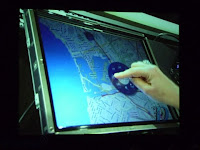 Windows 7 has built-in support for multi-touch capabilities which are soon going to make this screen-based system much more mainstream. The user can access the screen by simply pressing it. Just press the screen and it will display Simple Tap interface. Using your finger, access the screen is the simple and newer way of doing things.
Lenovo release the statement which states that now it would be possible for the companies to create their own “touch icons and applications”. Instead of seeing the traditional cursor, the symbol like a drop of the water would appear on the screen and the user can navigate through the system simply by dragging the finger with in the window something like web browser. And to move on to the next page you just require to press the link to move on to the next page. All these features can be accessed with the single press on the screen and they function mostly the same as they function on the earlier HP TouchSmart.
But the most capturing features are those that use windows 7 touch. By dragging two fingers apart, you can change the size and display of the icons in an Explorer Window. Some touch based games such as Blackboard, Rebound and Garden have also been introduced in it.
Though, touch screen features are intuitive but they can’t be a substitute for a mouse and the keyboard in many cases. Many other multi-touch laptops are going to be out soon, including HPís TouchSmart TX2z and the Fujitsu LifeBook T5010, as well as Lenovo’s well-reviewed Thinkpad X200 convertible tablet.
Acer comes first in the race to unveil its first pieces of the upcoming Windows 7 line up that is a touchscreen laptop and a smaller ultra-portable PC.
The new Acer PCS will enable you to turn pages and browse through media and documents by just flicking the screen. Now it’s no more difficult for users to launch movies, zoom in and out of Web sites. They can easily edit photos and videos, re-size windows and prepare hand-write notes using fingertips over mouse with multitouch screen laptop.
The Aspire 5738PG’s multiscreen flags all these features. Thus Acer has become the latest computer maker to utilize new touch capabilities in Windows 7.
The 5738PG has a 15.6-inch screen, a 2.2 GHz Intel Core 2 Duo T6600 processor and an ATI Radeon HD 4570 graphics processor from Advanced Micro Devices. Four GB of system memory, a 320GB hard drive, built-in Web cam and stereo speakers is also included in the system.
The laptop weighs 6.16 pounds with a six-cell battery and would be available at $800 retail price. Three other Aspire Timeline laptops have also been introduced by Acer that will also be ship with Windows 7 – the 13.3-inch AS3810T, the 14-inch AS4810TZ and the 15.6-inch AS5810TZ. The AS3810T run 1.3 GHz Intel Core 2 Duo SU7300 processor, while the other two systems uses a 1.3 GHz Intel Pentium Dual-Core SU4100 processors. Each system includes 4GB of system memory, either a 320GB or 500GB hard drive, and a built-in Webcam. The starting price of AS3810T is $800 and $650 for AS4810TZ and AS5810TZ .
Other vendors which have unveiled new PCs with touch screen features include Gateway and Sony.
Friday, January 22, 2010
Microsoft windows 7 multi touch
 Microsoft has introduced windows 7 multi touch technology with the latest Windows 7 that allows you to browse online newspapers, flick through photo albums, and shuffle files and folders by using just your fingers on the desktop. It allows you to zoom by placing two fingers on the screen of a multi touch-compatible PC and spreading them apart. To right-click a file you need to touch it with one finger and tap the screen with a second.
However, Windows Touch feature in Windows 7 is available only in the Home Premium, Professional, and Ultimate editions. Apart from that, the start menu and the taskbar in the new Windows 7 sport larger, fingertip-friendly icons. Not only that, all your favorite Windows 7 programs are also touch-ready.
Interestingly, you can even finger paint in Paint featured in the Windows 7. However, touch technology was also present in Windows Vista but the technological advancement of the feature was not as good and advanced as it is in Windows 7.
Windows 7 is also introduces handwriting recognition technology, which is the ability of a computer to receive and interpret intelligible handwritten input from various sources. Windows Media Center has also been touch optimized. In order to make efficient use of the Windows 7, Microsoft has devised this technology that enables you to browse websites that are compact and not easy to go through with a mouse. Buttons provided in Windows 7 are slightly wider to accommodate being pressed with a finger in touch-enabled displays including touch screens, tablet PCs etc.
Once you pair Windows 7 with a touch screen PC, it will become very easy to browse online newspaper, flick through photo album, and shuffle files and folder using nothing. For the very first time multi-touch technology has been fully embraced by Windows 7. Every task you want to do will become very simple. If you want to right click, just touch the multi-touch-compatible PC with one finger and tap the screen with another.
Microsoft has provided with optimized touch interface in Windows 7 with touch screen PC. Windows touch is only available in the three editions of Windows 7: Home Premium, Professional, and Ultimate. As you find in iPhones, multi-touch features are bundled in Microsoft Windows 7 with Tablet PC. Touch features gives the freedom of direct interaction. You can work on your computer with simpler notifications. Learn what is going on around you with Windows 7 in just few minutes. It offers you with more control and keeps you at the center of media world. You can have a quick look at videos and update yourself with Windows 7, Internet Explorer, and Windows Live.
After windows 7 installation windows 7 offers the user with touch gestures which includes the basic of tap and drag, as well as scroll, right click, back, forward, zoom, and rotate. High DPI support has also been improved in Windows 7. The advantage of this feature is that the UI element appears closer and larger which make it easier for the user to access the small buttons with touch. Windows Management has also been improved. The onscreen keyboard, the taskbar buttons, thumbnails, and Aero Peek are designed to work with touch. The users can easily size up and position Windows with Aero snap.
Friday, January 15, 2010
Microsoft Device Stage – A Great Help
 Microsoft launched the new Operating System – Windows 7 in order to overcome the troubles faced by users in Windows XP and Windows Vista. Microsoft has worked towards providing better and exciting features. One of the great things that Microsoft has incorporated in Windows 7 is the feature that allows you to see all the add-on devices on one screen. This new package of the Operating System is called Device Stage, which takes device management a level higher. Device Stage enables you to interact with any compatible device connected to your PC. With the help of Device Stage you can see the status of your device and run common tasks from a single window. The pictures of the devices make it truly easy to see what exactly is there. You can see exactly what photos are there on your camera, what music is there on your MP3 player, and more.
Microsoft assures Device stage to be a big part of Windows 7. It will change the way you interact with compatible devices and hardware attached to your system. In simple words, it allows you to see exactly what printer, phone, mp3 player and other devices you have installed on the computer. This management site called Device Stage; let you look at the status of the device and let you run tasks. This surely is a great assistance in linking mobile phones, printers or portable media players to your computer. Microsoft team has worked hard in order to achieve maximum range of partners to ensure their devices are fully device stage compatible.
As soon as the device is plugged in, it will load drivers almost instantly. As compared to Vista, the process is much faster. Drivers of printers, USB keys, digital cameras, external HDDs are installed within seconds and are instantly accessible to the users. The waiting time of device driver installation in Windows XP and Vista was much longer. Moreover, if Windows7 is unable to find drivers, it will automatically search on Windows Update.
The overall experience with devices, as compared to the earlier versions, has greatly improved with the help of Device Stage of Windows 7.
See also
remove windows 7
As soon as the device is plugged in, it will load drivers almost instantly. As compared to Vista, the process is much faster. Drivers of printers, USB keys, digital cameras, external HDDs are installed within seconds and are instantly accessible to the users. The waiting time of device driver installation in Windows XP and Vista was much longer. Moreover, if Windows7 is unable to find drivers, it will automatically search on Windows Update.
The overall experience with devices, as compared to the earlier versions, has greatly improved with the help of Device Stage of Windows 7.
See also
remove windows 7
Microsoft launched the new Operating System – Windows 7 in order to overcome the troubles faced by users in Windows XP and Windows Vista. Microsoft has worked towards providing better and exciting features. One of the great things that Microsoft has incorporated in Windows 7 is the feature that allows you to see all the add-on devices on one screen. This new package of the Operating System is called Device Stage, which takes device management a level higher. Device Stage enables you to interact with any compatible device connected to your PC. With the help of Device Stage you can see the status of your device and run common tasks from a single window. The pictures of the devices make it truly easy to see what exactly is there. You can see exactly what photos are there on your camera, what music is there on your MP3 player, and more.Microsoft assures Device stage to be a big part of Windows 7. It will change the way you interact with compatible devices and hardware attached to your system. In simple words, it allows you to see exactly what printer, phone, mp3 player and other devices you have installed on the computer. This management site called Device Stage; let you look at the status of the device and let you run tasks. This surely is a great assistance in linking mobile phones, printers or portable media players to your computer. Microsoft team has worked hard in order to achieve maximum range of partners to ensure their devices are fully device stage compatible.
As soon as the device is plugged in, it will load drivers almost instantly. As compared to Vista, the process is much faster. Drivers of printers, USB keys, digital cameras, external HDDs are installed within seconds and are instantly accessible to the users. The waiting time of device driver installation in Windows XP and Vista was much longer. Moreover, if Windows7 is unable to find drivers, it will automatically search on Windows Update.
The overall experience with devices, as compared to the earlier versions, has greatly improved with the help of Device Stage of Windows 7.
See also
remove windows 7
As soon as the device is plugged in, it will load drivers almost instantly. As compared to Vista, the process is much faster. Drivers of printers, USB keys, digital cameras, external HDDs are installed within seconds and are instantly accessible to the users. The waiting time of device driver installation in Windows XP and Vista was much longer. Moreover, if Windows7 is unable to find drivers, it will automatically search on Windows Update.
The overall experience with devices, as compared to the earlier versions, has greatly improved with the help of Device Stage of Windows 7.
See also
remove windows 7
Thursday, January 7, 2010
Internet Explorer 8 default Browser of Windows 7
 Internet Explorer 8 is the default browser that comes with Windows 7. It helps you surf the Internet in a quicker way. New features like Instant search, Web Slices, Accelerators, Compatibility View makes it stand ahead of all other previous versions and of all other competitive browsers like Firefox Mozilla, Google Chrome and others. The browser combines your browsing history with detailed suggestions from your favorite search providers in order to take you to more relevant search results. Instant search in internet browsers for windows 7 makes your work simple and displays a list of suggestions the moment you start typing. You can quickly access favorites without wasting time in typing.
SmartScreen technology
New SmartScreen technology provides you with instant and complete protection against malicious software and phishing attacks that can prove to be a threat to your security, as well as privacy.
It has now become easier to find changes on a website with the help of Web Slices. You just need to spot the green Web Slices icon on a site, click it. If any change has been made to the website, the Web Slices icon in your Favorites bar lights up. And, when you click on the glowing icon you can find out what changes have been made.
InPrivate Browsing
IE 8 offers InPrivate Browsing to the users which provide the option to prevent browsing history, cookies, usernames and passwords from being saved by the browser, it is comparatively lot more safer than the previous Internet Explorer versions. With In Private Browsing, no one can track your details. Cross-site Scripting protects you from hackers and web attacks. It also protects users from malicious websites from stealing your personal information
Compatibility View button
If a webpage doesn’t look right, just click the new Compatibility View button on the Address bar. The button corrects misaligned text or images on pages designed for older browsers.
Automatic crash recovery feature
With the help of new automatic crash recovery feature inscribed in Windows 7, if Internet Explorer 8 encounters a poorly built site that causes a tab to crash, only that tab will close, which is affected. All other tabs that are open in that window will remain unaffected.
With Internet Explorer 8 many of the browser related issues have been solved especially the ones concerned with the security. The risks of browser hijacks and script errors are also minimal. Speed, which was a major issue in the older versions, has also been improved to a great extent.
Monday, December 21, 2009
Windows 7 RC review:
Windows 7 Release Candidate (RC) is the successsor of Windows 7 beta and gets an edge over its beta due to a series of user-interface changes. In this article we will discuss Windows 7 RC review and the various features it offers
Windows 7 RC includes the new “taskbar thumbnail overflow feature”. Instead of showing the list of all opened files, Windows 7 RC’s taskbar works with a thumbnail view. You can hover your mouse over the icon and you will be able to see the preview of the program running. Also, Windows 7 RC will allow you to manually pin your files to a “JumpList” for a program that usually handles different file type. Also, in the jumplist all the remote connections are saved enabling you take control of remote PC more easily.
In previous editions of Windows including the Windows 7 beta, the taskbar setting were saved only after you exit the explorer at the end of session. In case of a system crash or sudden shut-down, the new taskbar settings are lost. However, in Windows 7 RC, the changed taskbar settings are saved after 30 seconds of their implementation.
The Alt-tab windows switching is now integrated with new Aero Peek feature in Windows 7 RC. While shifting windows you can see the open windows and peek through the desktop as well. RC also offers an enhanced searching tool. It includes longer and more frequent snippet information.
Windows 7 XP mode support is the most amazing feature that comes along with Windows 7 Release Candidate. It allows a user to run the various XP applications in an XP compatibility box and gives a look as if they are running in Windows 7 directly.
XP mode feature is sufficient for small businesses but larger business need to also run the older applications. For them Windows 7 RC offers MED-V that allows control over the administrative rights of the PC. This feature will add strength to the XP mode of Windows 7
Windows 7 RC includes the new “taskbar thumbnail overflow feature”. Instead of showing the list of all opened files, Windows 7 RC’s taskbar works with a thumbnail view. You can hover your mouse over the icon and you will be able to see the preview of the program running. Also, Windows 7 RC will allow you to manually pin your files to a “JumpList” for a program that usually handles different file type. Also, in the jumplist all the remote connections are saved enabling you take control of remote PC more easily.
In previous editions of Windows including the Windows 7 beta, the taskbar setting were saved only after you exit the explorer at the end of session. In case of a system crash or sudden shut-down, the new taskbar settings are lost. However, in Windows 7 RC, the changed taskbar settings are saved after 30 seconds of their implementation.
The Alt-tab windows switching is now integrated with new Aero Peek feature in Windows 7 RC. While shifting windows you can see the open windows and peek through the desktop as well. RC also offers an enhanced searching tool. It includes longer and more frequent snippet information.
Windows 7 XP mode support is the most amazing feature that comes along with Windows 7 Release Candidate. It allows a user to run the various XP applications in an XP compatibility box and gives a look as if they are running in Windows 7 directly.
XP mode feature is sufficient for small businesses but larger business need to also run the older applications. For them Windows 7 RC offers MED-V that allows control over the administrative rights of the PC. This feature will add strength to the XP mode of Windows 7
Tuesday, December 1, 2009
Change the Windows 7 Startup programs
Change the settings for current startup applications in Windows 7 through system configuration tool.
Follow these steps:
Step 1. Click the Windows ‘Start’ button and navigate to ‘All Programs’. Right click the ‘Startup’ folder in the menu and select ‘open all users’. This option opens the folder for all users on the computer. Choose ‘Explore’ to open the folder for the currently logged-in user only.
Step 2. Right-click the folder or file you wish to start when the computer boots. Select “Copy Shortcut” from the menu.
Step 3. Right-click any white space in the “Startup” folder opened in Step 1. Select “Paste” from the menu list. The program will now launch the next time you start the computer.
Step 1. Click the Windows “Start” button and type “msconfig” in the RUN text box. This opens the System Configuration console.
Step 2. Click on Startup tab. This tab contains list of all programs installed on your computer.
Step 3. Check boxes of the applications you like to start when you boot the computer. For programs you no longer want to start, clear the checkbox.
Step 4. Click “Apply” and close the window. A popup window asks if you want to reboot the computer. Click “Restart” to reboot the computer and save the changes.
Follow these steps:
Step 1. Click the Windows ‘Start’ button and navigate to ‘All Programs’. Right click the ‘Startup’ folder in the menu and select ‘open all users’. This option opens the folder for all users on the computer. Choose ‘Explore’ to open the folder for the currently logged-in user only.
Step 2. Right-click the folder or file you wish to start when the computer boots. Select “Copy Shortcut” from the menu.
Step 3. Right-click any white space in the “Startup” folder opened in Step 1. Select “Paste” from the menu list. The program will now launch the next time you start the computer.
Change the Current Startup Programs:
Follow these steps:Step 1. Click the Windows “Start” button and type “msconfig” in the RUN text box. This opens the System Configuration console.
Step 2. Click on Startup tab. This tab contains list of all programs installed on your computer.
Step 3. Check boxes of the applications you like to start when you boot the computer. For programs you no longer want to start, clear the checkbox.
Step 4. Click “Apply” and close the window. A popup window asks if you want to reboot the computer. Click “Restart” to reboot the computer and save the changes.
Friday, November 27, 2009
Microsoft looks into Windows 7 upgrade troubles
Microsoft is working on upgrade snags that some users have described when migrating from Vista to Windows 7. The complaints started late in the Microsoft Answers forum for Windows 7. Users seems to be experiencing two distinct problems. In one case, Windows 7 installation process burns short at 62 percent completion. The other problem involves an endless reboot, where the Windows 7 upgrade never finishes.

Disgruntled forum posters weren’t the only ones experiencing the problem. A Microsoft employee found the reboot when migrating to Windows 7 on a home PC, the spokesperson explained. Endless reboot is a phrase that may clip some memories. Last year, some Vista users faced a similar reboot cycle when migrating to Vista Service Pack 1. Microsoft has fixed that problem. With regard to the incomplete upgrade problem with Windows 7, Microsoft does provides a workaround. Apparently a service, possibly the Iphlpsvc service, interferes with the upgrade to Windows 7. The workaround involves executing a detailed set of steps that may take the joy out of the upgrade process, especially for home users. Possibly, Microsoft may launch an easier-to-apply solution.
Finally, users could face another problem that may occur after a successful new Windows 7 upgrade on machines that use solid-state drives (SSDs). The upgrade results in a storage system failure on certain machines using Intel SSD firmware, according to a report by Betanews. The storage failure looks to be linked with “Trim command” technology, which gives SSDs keep track of file additions and deletions. Trim technology is specifically supported in Windows 7, according to the Engineering Windows 7 blog. The Microsoft spokesperson indicated that the firm is recently investigating the SSD storage failure problem and will post to the Microsoft Answers forum should more information become available
In another development, some of the comments on the Windows 7 review and follow-up piece indicated when it was tried with the new OS on a netbook. However, the same performance lag we found impressing from Windows XP 7 on desktops was also evident with the netbooks, only to a much greater extent. A netbook with an Atom N270 processor running at 1.6 GHz got a respectable 246.4 on our Passmark Performance Test benchmarks version 7.0 with XP. But after the Windows 7 install, this dripped to 188.8. That’s a 58 point drop, meaning the poor netbook runs 24 percent slower than before. The second netbook had an Atom N280 processor executing at 1.66 GHz. With XP, it got 259.4 on the benchmark, which is not storming given that it’s a slightly faster processor than the N270. However, it also dropped big time once Windows 7 came on board, to 214.2. So you can expect an 18 percent drop in performance if you move that system from Windows XP 7.
Windows 7 is just Vista with small alterations
A new Microsoft Windows operating system is always big news, especially for the federal government, which irresistibly depends on Windows of one stripe or another to execute just about everything. The last really stable operating system to find widespread acceptance was Windows XP. Vista added a lot of user-friendly choices but was more or less branded as a consumer product that is not really suitable for business. And now we have Windows 7, which is examining to keep most of the shades of Vista while maintaining the businesslike status that XP enjoyed. The Windows 7 desktop seems suspiciously like Vista, but there are a few new things executing behind the scenes.
When loading of the install was done and were stormed that it could execute from the drive like a normal program and not need to be booted. Once it scanned the test computer, it asked if you want to upgrade your existing operating system or install a clean edition of Windows 7. Because you are migrating from Vista, you chose the upgrade option, which did keep all of the existing programs in place. A lot has been written about how XP users are out of luck in terms of holding their old programs. If you are moving to Windows 7 XP, you must select a clean install.
At this point, the program admonished that the install could take hours and that the system would reboot several times. On these points, it was correct. The time from when we clicked OK to the time Windows 7 was ready to go was 1 hour, 40 minutes on the tested system, which had a 1.6 GHz dual-core processor. There is a nice progress bar at the bottom of the install screen that shows how far along you are. It’s a guess at best given that the actual status percentages for each element seem to rush ahead and then stop for half an hour at an odd spot, such as 72 percent. But at least it gives some reading as to what’s going on.
Here’s the dirty little secret that Microsoft is definitely not telling anyone. If you hated Vista because of the interface, then you are going to hate Windows 7, too. Vista totally changed the look and feel of Windows from XP, but Windows 7 only marginally modifies the look and feel from Vista. In fact, 90 percent or more of the interface is exactly the same as identical. Going on just the look and general behavior, Windows 7 is little more than what Microsoft could have pitched in a free service pack to the Vista operating system.
On the bad side, most of Vista’s annoyances have remained intact, even if Windows 7 is executing an internal process. Performance is also unaltered overall on a system executing Vista compared with Windows 7. The systems executing Vista and then benchmarked them again once they changed to Windows 7. They were unchanged. Going from Windows XP 7 resulted in a little performance decrease, much like when going from XP to Vista.
Windows 7 starter versus Windows 7 home basic
Windows 7 home starter is specifically designed by Microsoft targeting the low end market especially netbooks and some other PC hardware which are sold for the cheapest possible price. In fact, the main reason behind Windows 7 home starter is to come up with a Windows edition that can be put cost effectively on various low end products.

- Windows Internet Explorer 8
- 32-bit only support
- Windows Media Player 12
- Home Group join only
- Concurrent Applications Unlimited
The main factor which was behind criticism for Windows 7 home starter edition was its limitation to just three concurrent applications. Although applications like anti virus, messengers etc were not included in deciding the limit, still it was said that users may find it difficult and disappointing if they reach the limit. Microsoft finally decided to remove the limit and much for the user’s pleasure there is no restriction on number of applications running on Windows 7 home starter edition.
The nest operating system following the Windows 7 starter edition is Windows7 Home Basic. It will be available only in some emerging markets. Most of the features of Windows 7 home basic is similar to Starter edition with some advancements like both 32 bit and 64 bit support. It also comes up with partial Aero support and desktop Windows manager. Some of the main features that come along with Windows 7 home basic includes:
- 32-bit and 64-bit mode support
- Concurrent Applications Unlimited
- Windows Internet Explorer 8
- Desktop Window Manager
- Home Group (Create & Join) Join Only
- Windows Mobility Center
- Windows Media Player 12
- Windows Aero Partial
Limited availability of Windows 7 home basic has kept Windows 7 starter as more popular in spite of advanced features in Windows 7 home basic.
Tuesday, November 24, 2009
Windows 7 with Windows Media Center
What was originally devised as an interface for what was once called the Windows 7 Media Center PC it is basically a computer operating on Windows XP that’s solely configured for working out multi-timedia solutions and is often loaded with a TV tuner card and add to that a special wireless remote; one can now use the Windows version of this attractive application to play music, view digital pictures, play movies, and also get the option to watch and record TV (provided your computer comes loaded with a TV tuner card).
Remember, that a user can only connect a computer that is running the Windows 7 Media Center for Windows directly to a home entertainment center by buying the Media Center Extender. Connecting directly to an Xbox 360 by buying the Media Center Extender for Xbox is also a viable option. When Windows 7 Media Center is launched , the Welcome to the Media Center Wizard will be directly visible , which guides one through the steps of setting up the center of a screen display, then configuring it to get a TV signal and downloading the TV guide which is available online. If a computer comes with a TV tuner card, that is. Thereafter, each time the Media Center is launched, the program reveals a full screen in a largely dark-blue window.

Since the Media Center options have been crafted to be accessed by enabling the use of a special Media Center remote control along with a standard mouse, its interface is a lot times fluid than what can be usually found in other conventional Windows application. The first thing that will come in sight in the Media Center interface is the amount of audio and visual feedback it emits.
When a program is launched like the new Windows 7 and one selects the menu option thereafter, Windows gives you distinct tones and clicks as well as visual answers to enable people to know which menu option to opt for and when the selection is completed.
Once the preferred option is selected, the user can select and display its sub menu options by clicking on the mouse button. With the Media Center remote control, move up and down through the main menu options by pressing on the device’s up and down arrowheads. Click the OK button which is located around the middle of the remote from the one which separates the arrowheads and choose the main option accordingly.
You can play Media files in Windows 7 using Windows Media Player. On computers, the term media refers to something other than text: Audio and video are examples of media. Audio is a term that has wide variety of items for music and other sound files, such as books on CD. Music is often entirely digital nowadays. You can use Media Player to play the sample music included with Windows 7. You can play your audio CD on your computer using Media Player. If you want to make that CD playing more convenient then you can copy the audio files to your computer. You can create your own CDs with a library of music copied from your CD collection and you can also combine tracks. You can also copy audio files to an MP3 player.
Monday, November 23, 2009
Listening to Music and Watching DVDs in Windows 7
You can play Media files in new windows 7 using Windows Media Player. On computers, the term media refers to something other than text: Audio and video are examples of media. Audio is a term that has wide variety of items for music and other sound files, such as books on CD. Music is often entirely digital nowadays. You can use Media Player to play the sample music included with Windows 7. You can play your audio CD on your computer using Media Player. If you want to make that CD playing more convenient then you can copy the audio files to your computer. You can create your own CDs with a library of music copied from your CD collection and you can also combine tracks. You can also copy audio files to an MP3 player.
Play Music with Windows Media Player
1. To start Windows Media Player, click its icon which appears as a white triangle on an orange circle on a blue square in the taskbar. The initial settings screen will appear the first time you start Media Player. Now click Recommended Settings and then click Finish.
2. Now, the Media Player Library shows music that comes with Windows 7 and any other music that you have already copied to your computer. The toolbar at the bottom of Media Player’s window provides the following controls:
• Shuffle: To turn on shuffle, click this button. This option randomly mixes the tracks you play. A second click on shuffle turns it off and the tracks play in the order in which they appear onscreen.

• Loop: Click this button to turn on loop which means repeat. This option will continuously play all the tracks again after all have played.
• Stop: Click to stop a track.
• Previous: This button jumps to the previous track.
• Play/Pause: To pause play mid-track, click the button with two vertical lines. To resume playing from the point you paused, click the same button which is now with a triangle pointing to the right.
• Next: This button jumps to the next track.
• Mute/Unmute: To silence the player, click this button. Although the track will continue to play but you won’t hear it. A red circle and slash appear next to the speaker icon when mute is on. You need to click the button again to hear the track.
• Volume: To decrease or increase the volume of track, click or drag the slider to left or right respectively. Your speakers may also have manual volume control. Windows 7 also has a separate volume control in the taskbar.
• Now Playing: It is located far to the right of the toolbar, to reduce the player to a small size, click this button.
3. You can use these controls to play the music. You can adjust the volume with the slider. Mute and unmute the music. You can also pause the music and resume playing. To stop music use Stop button.
4. To shrink Media Player to a smaller window, click the Switch to Now Playing button to the right of the toolbar. Click the Switch to Library button to return to the larger window.
You can also buy music online and download the tracks directly to your computer using this media player.
Why Prefer Windows 7 Over Vista
Many of my relatives and friends completely denied to make the switch to Windows Vista when it was released. Some who purchased new machines with Vista installed immediately downgraded the OS. A few said that they would give up XP only when you pried it from their cold, dead hands. But even in the last category, many of them are impressed with what they’ve seen in the Windows 7.

Reasons why to choose windows 7 over windows vista
While some tech professionals are saying Windows 7 isn’t really all that different from Vista and indeed, one of the plus point for Vista users is that Windows 7 can generally use the same drivers and run the same applications as Vista.
Microsoft redesigned the UAC in Windows 7. Most of the people feel this on-going effort has been successful.
Microsoft has reduced the actions that prompt you making it less annoying for the users. The software giant has made several changes, but the biggest change is the User Account Control “slider” setting which results in less annoyance and more security.
User Account Control safeguards your computer against hackers and protects it against malicious software. The tool prompts the user for the permission, if any application wants to make any changes to your computer. UAC is more flexible in Windows 7 than in Windows Vista. Now, every task doesn’t require your consent in Windows 7, and if you have administrator privileges, you can easily fine tune to UAC’s notification settings from the control panel.
Vista made the left navigation pane in Windows Explorer a constantly moving target. As you navigate your mouse, it will automatically scroll back and forth.
You can avoid the auto-scrolling by dragging the pane to make it wide enough to accommodate the entire tree.In Windows 7, the navigation pane stays still, so you no longer risk getting seasick from all the swaying back and forth.
In Windows XP, you could use pretty much whatever graphics cards you wanted for multiple monitors. According to reports, that to use multiple graphics cards, you would have to all use the same driver. That meant I couldn’t use cards from different vendors together. I had to shell out a few bucks to get more ATI cards before I could use all my monitors again.
According to reports, Windows 7 has added support for multiple heterogeneous graphics cards from different vendors. Now this probably doesn’t mean you can combine ATI and NVIDIA cards in an SLI-configuration, but it sounds as if we can have our multi-vendor multi-monitor setups back.
Another common issue about Vista has been the inordinate amount of time it can take to boot up. This might not be a problem for those who leave their systems on all the time, but if you shut down your system every night, waiting around forever for it to get started in the morning can turn into a major annoyance.
A Microsoft official indicated that the company’s goal for Windows 7 is a 15-second boot time, whereas three quarters of Vista users report boot times of more than 30 seconds.
Subscribe to:
Posts (Atom)


